![Full Color Horizontal Logo@0.5x.png]](https://help.cadmore.com/hs-fs/hubfs/CADmore%20Logos/Full%20Color%20Horizontal%20Logo@0.5x.png?height=40&name=Full%20Color%20Horizontal%20Logo@0.5x.png)
Logging in to your CADmore account is straightforward, ensuring you have quick and easy access to your projects and information. Whether you are a new user or returning to manage your ongoing projects, this guide will walk you through each step of the login process.
Registering Your Account:
Before you can log in, you first need to register your account — logging in only works once your account has been created. There are two ways to register:
- Right after you submit a project. The confirmation screen includes a Complete registration button — the fastest way to set up your account.
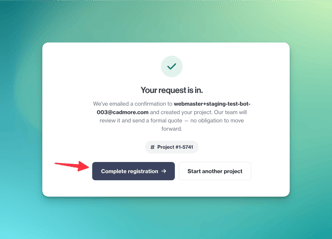
-
From the email sent to you. Check your inbox for the confirmation message from CADmore and use the registration link inside.
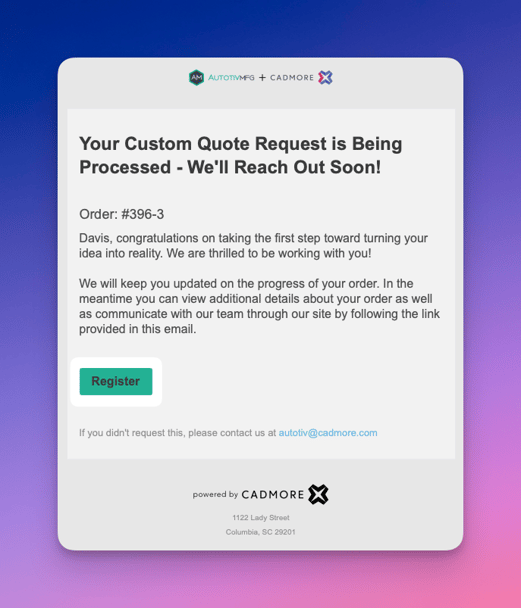
During registration you'll be asked to review and accept the Terms & Conditions before continuing into the portal.
Accessing Through a Project Manager:
-
- If you've previously been in touch with a project manager, you can find a login link at the bottom of their email notifications.
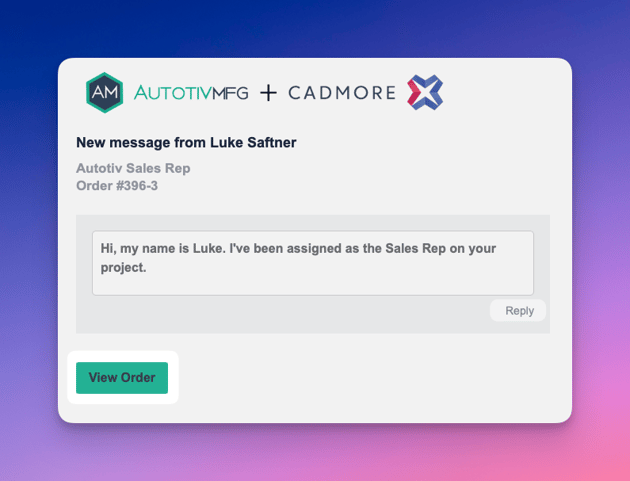
Project notifications and messages from the CADmore team include a link that takes you straight to your project in the portal — handy when you're coming from your inbox.
Your projects are tied to the specific CADmore organization you initially contacted. For example, if you came through Protolabs, visit protolabs.cadmore.com. For direct inquiries, go to design.cadmore.com. Make sure you're on the correct site to find your projects.
Logging In:
- Once on the correct site, click ‘Login’ located in the top right corner of the page.
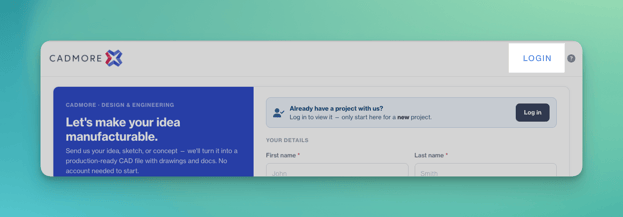
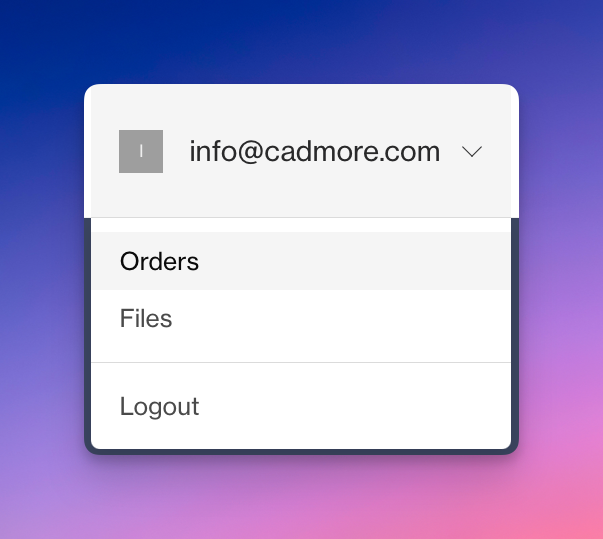
- If you are already logged in, you'll see your email or name in the top right corner.

Accessing Your Projects:
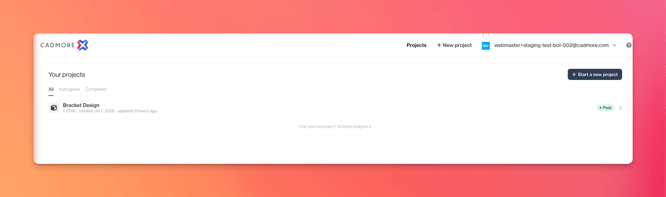
- Click Projects in the navigation bar at the top of the page.
- You'll see a list of your projects. Select the relevant one to open it. Note that you may have multiple projects if you're working on several with CADmore.
Do not create another project if you can't find your existing one. This could lead to duplication and confusion. If you're having trouble finding your project, reach out to CADmore support for assistance.