![Full Color Horizontal Logo@0.5x.png]](https://help.cadmore.com/hs-fs/hubfs/CADmore%20Logos/Full%20Color%20Horizontal%20Logo@0.5x.png?height=40&name=Full%20Color%20Horizontal%20Logo@0.5x.png)
The CADmore Customer Portal offers a streamlined way to manage your reference files, important documents, and completed files. This guide will help you navigate the Files section with ease, ensuring you can upload, view, and download your files without any hassle.
For the best experience, ensure you use the most current version of Google Chrome on a computer.
Accessing Files
- Log in to the Customer Portal. Ensure you're logged in to access the files associated with your project. See our article on Logging into the Customer Portal for more information.
- Open your project. From the Projects page, select the project you're working on.
- Find the Files panel. On a computer, Files appears on the left side of the project screen. On a phone or a narrow window, tap the Files tab.
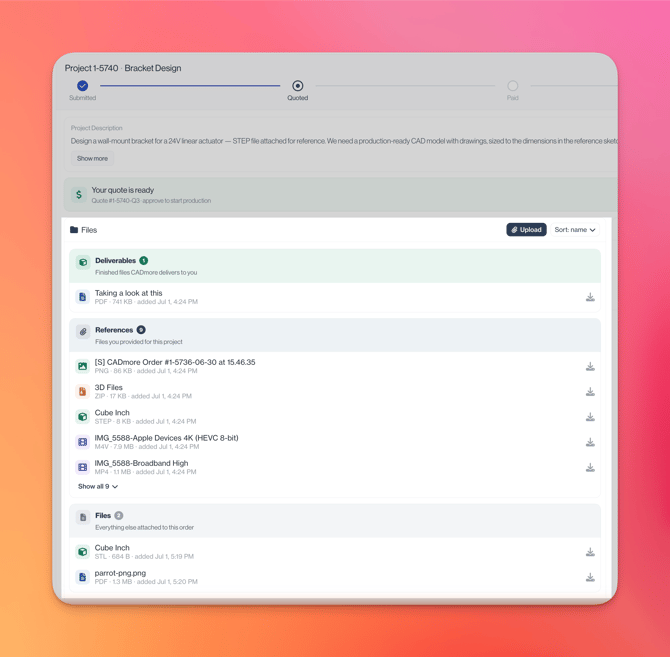
Your files are organized into labeled sections:
- Deliverables - finished files CADmore delivers to you. They appear here once your design work is complete.
- References - files you provided for the project. Anything you attach to your original request form lands here automatically, along with anything you upload later.
- Files - everything else attached to the project that isn't a deliverable or a reference.
Uploading Files:
- Click “Upload”. The Upload button is at the top right of the Files panel.
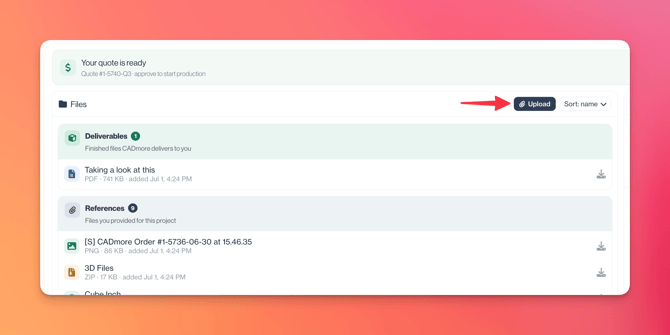
- Select Your File. Browse and choose the file from your computer.
- Wait for the Upload. There's no file size limit, but remember larger files take longer to load. Do not close the window until the upload is complete.
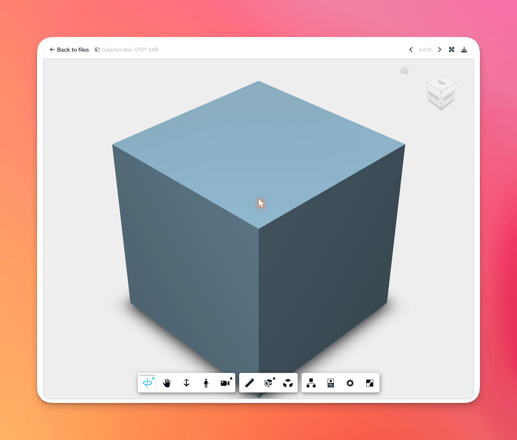
Most 3D files can be viewed inside the platform using the built-in viewer. PDFs, images, and text files are also viewable — just click a file to open it.
Downloading Files
Downloading files is straightforward:
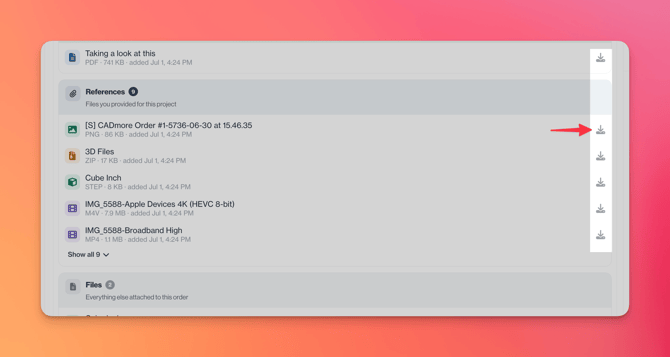
- Locate the File. Find the file in its section, or use Show all to expand longer lists.
- Click the download icon. Every file row has a download icon on its right side — click it to save the file to your computer.
Files are sorted alphabetically, not by the date uploaded.
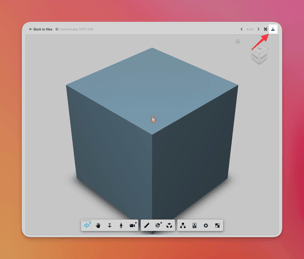
Viewing and Downloading PDFs
- Viewing PDF Files: click a PDF to read it directly in the portal viewer.
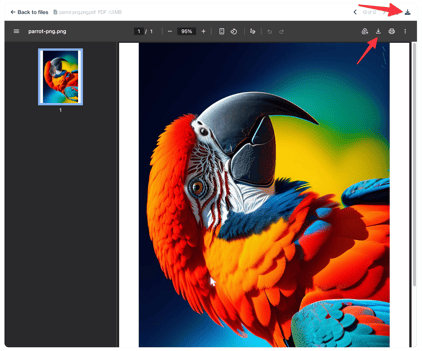
- Downloading PDF Files: use the download icon on the file row to save the full document to your computer.
For the best experience, ensure you use the most current version of Google Chrome.